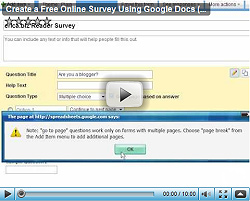
Read this post, and in just 10 minutes, you’ll have created your own survey for your customers or readers! Better yet, you will save hundreds of dollars, as you will likely never pay for an online survey tool again…
It used to be, if you wanted to survey your customers or readers, you would have to pony up some hard-earned dollars for a paid online survey tool. In fact, many of these tools carry a monthly fee, and some don’t easily let you export your data–holding you (and your survey results!) hostage. That is no longer the case.
Video: Create Surveys for Free with Google Docs
With Google Docs, a free tool, anyone can create a good-looking survey. Your can accept results online, and have the results in a spreadsheet that you can then export to Excel or OpenOffice, or send to others as a spreadsheet.
Google Docs will generate the same great graphs that other survey tools will, and even supports advanced features like directing survey takers to certain “pages” of the survey based on their answers to previous questions.
I show you exactly how to set up your own free online survey in about 10 minutes with Google Docs in this step-by-step video:
[0:28] To get started, go to http://docs.google.com.
[1:15] Once you’re in to Google Docs, go to “Create New” and then click “Form”.
[1:28] Name your survey.
[1:51] A walkthrough of the various question types: Text; paragraph text; multiple choice; checkboxes; choose from a list; scale; grid.
[3:00] How to edit, duplicate, and delete a question.
[3:32] How to set up multiple pages and set up a “flow” for your survey so survey takers are directed to a different page based on their answer to a question.
[5:00] How to quickly move a question from one page of your survey to another.
[5:20] Editing the text that people see once they complete the survey.
[5:50] Save your survey.
[5:58] How to email your survey to others.
[6:10] How to embed the survey onto your blog or website–it’s so simple! This is one of my favorite features of the Google Docs survey tool.
[6:28] Select a theme (design) for your survey with a couple clicks.
[7:00] What it looks like once people respond to your survey.
[7:45] Showing the pretty graphs that the tool creates of all your responses.
[8:41] How to stop people from completing your survey once it’s over.
[8:55] How to export your survey to Microsoft Excel, OpenOffice, and other formats.
Next time you need to create a survey, try Google Docs. It’s free, allows (theoretically) unlimited responses, and is quite easy to use.
Tip for Business Owners and Bloggers:
If you’re running a business or a blog, I recommend surveying your customers/readers at least once a year, and preferably even more often than that. If you haven’t ever surveyed your customers, there’s no better time than the present–even if you only have a few of them. One or two more sales because you are able to offer additional services they need will more than pay back the small amount of time required to create a survey.
If you’re currently paying for an online survey tool, Google Docs has the potential to save you hundreds of dollars a year, so definitely check it out.
Enjoy!
Recommended Reading:
- My YouTube channel. Please subscribe there if you would like notifications of new videos I post.
- How to Make a Mind Map. My last how-to video, where I walk you step-by-step through another free online tool to create mind maps!

Like this entry? You will love getting my free business tips! No spam, and I won't give your email address to any other company.


18. February 2010 at 4:45 am
I guess I’ll give it a try, it looks pretty simple.
18. February 2010 at 5:40 am
This is an awesome tutorial! I’ve seen surveys done using Google Form before but I never bothered to check it out (using SurveyMonkey at the moment). Google Form sure has its own neat features though, I’m going to check it out next time I run a survey.
Thanks a lot.
18. February 2010 at 6:55 am
Nicely done Erica!
I had no idea you could create surveys in Docs and posts like this are exactly why I read your site. Thanks tons!
18. February 2010 at 9:49 am
The feedback I’ve gotten from the survey thus far has been awesome. I especially appreciated you taking the survey, Erica. I plan on (and have been planning on) putting up an “about me” widget. My last one was just too much of an eyesore and I got distracted in the meantime. Thanks for the reminder. It is nice to have independent opinions in addition to clients, family, and friends.
18. February 2010 at 10:24 am
Thanks for that tutorial. I didn’t know Google Docs had that functionality. I’ll be trying it out.
18. February 2010 at 10:25 am
Great tips. Thanks much much!!
18. February 2010 at 10:26 am
Do you have any tips on how to ask questions? I have the process for creating a form, but I’m not sure if I should include incentives or not. Thanks!!
18. February 2010 at 3:06 pm
Hi Jeff,
Sent you an email–take a look at my questions at
http://www.erica.biz/survey for how I set mine up.
-Erica
3. May 2010 at 2:00 pm
Hi Erica,
This was really helpful, thank you! Can you share the tips for how to decide what to ask your customers/readers? The link to the survey is closed so I can’t see what types of questions you asked.
Thanks,
Amy
18. February 2010 at 10:41 am
Erica,
Very helpful video. I’ve been using Google Docs for awhile but somehow didn’t know this feature was available, so thanks for the heads-up.
- Neil
18. February 2010 at 10:47 am
Very interesting. Will definitely look into this.
This should be very helpful for my websites, thanks!
18. February 2010 at 10:57 am
Thanks for a fabulous tutorial! I’m getting ready to put together a survey for my MiLi iPhone battery packs and cases. I was going to use survey monkey, but now I’m going to try Google Docs!
Again, thank you!
18. February 2010 at 2:32 pm
Hi Erica,
Like some of your other readers I had no idea about this survey tool.
Thanks for giving out the info. Your instructional video and the points under it are really helpful and well done.
When I need to do a survey I’ll know what to do now.
Vance
18. February 2010 at 5:51 pm
Hello Erica,
I cannot believe the timeliness of this post. I was just today researching a couple of sources for this very thing. Question Pro is still open on another tab.
You’re a little scary on this one. Anyhow, this is right on time and I thank you so much for the insight.
18. February 2010 at 7:26 pm
Erica,
Thank you so very much for this wonderful post. I think my readers would appreciate your wisdom.
Let me know if I can republish it on my site with full credits back to you.
Thanks again,
David
PS: While you’re at it…how does one add an avatar or pic to their comments?
18. February 2010 at 8:22 pm
Great video, I’ll definitely recommended it to anyone getting started with google forms.
If you are collecting emails and want to easily reply you can add a formula to the spreadsheet that lets you reply with one click, I have a tutorial on my site:
http://robotification.com/component/content/article/8-programming/67-easilyreplytogoogleform.html
18. February 2010 at 10:01 pm
Awesome post Erica! I had been using SurveyMonkey for this, I had no clue Google Docs had this capability. Thanks for sharing!
19. February 2010 at 5:04 am
I knew that Google Docs could do surveys but this video made it easy and took away all my excuses for avoiding learning about it.
Excellent production values and solids content, as always.
19. February 2010 at 2:45 pm
New feature to me–brilliant tip. Thanks.
19. February 2010 at 2:54 pm
Nice tip Erica! I’m gonna see if I can implement something similar on my blog too!
20. February 2010 at 3:35 am
Cool beans. Thanks a lot…quite insightful
21. February 2010 at 8:38 am
I was going to use http://survey.io/ but this is soooooo much more simpler.
Thx for sharing this tip.
22. February 2010 at 8:04 pm
I just did one and it will go up tomorrow! thanks for the how-to
23. February 2010 at 9:35 pm
great post, i will be using google doc much more now, thanks!
24. February 2010 at 9:16 pm
Wonderful, clear tutorial.
Your presentation is practical and to the point.
I especially like the time indexes you provide for later reference.
27. February 2010 at 8:27 pm
Hey Erica,
Thanks for a great website and tips! I just recently started reading your site.
I have a question, I have a family auto business and I want to learn how I can better promote it and how to learn from our customers on how we can better our service. I think we can do better but I have never created a survey for our customers.
Thanks!
1. March 2010 at 12:42 pm
This is so useful! Google is very scary, what will segment of the online world will they dominate next??
14. April 2010 at 9:53 pm
I will consider to use one of it for our new site. Thanks.
19. April 2010 at 10:31 pm
Erica, you really brought it with this one. what a great tutorial and great lesson. Can’t wait to use it to see what my readers want more of. take care and I cannot wait to see what you come up with next.
24. July 2010 at 6:24 am
Thanks so much, just applied this to my blog…